Email Campaigns

Setting up an email campaign

Create and publish your next email campaign in 3 simple steps.

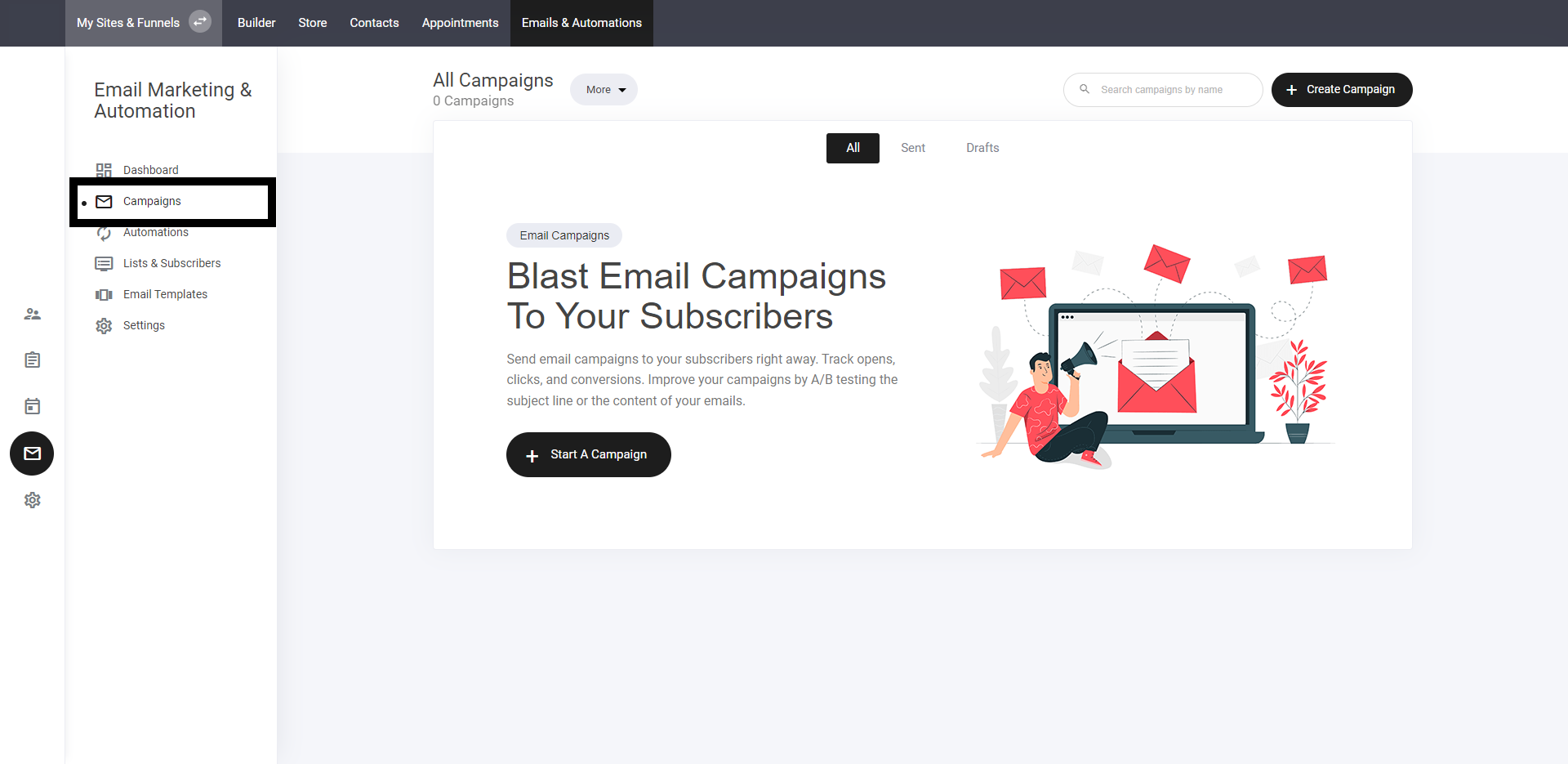
Select campaign tab

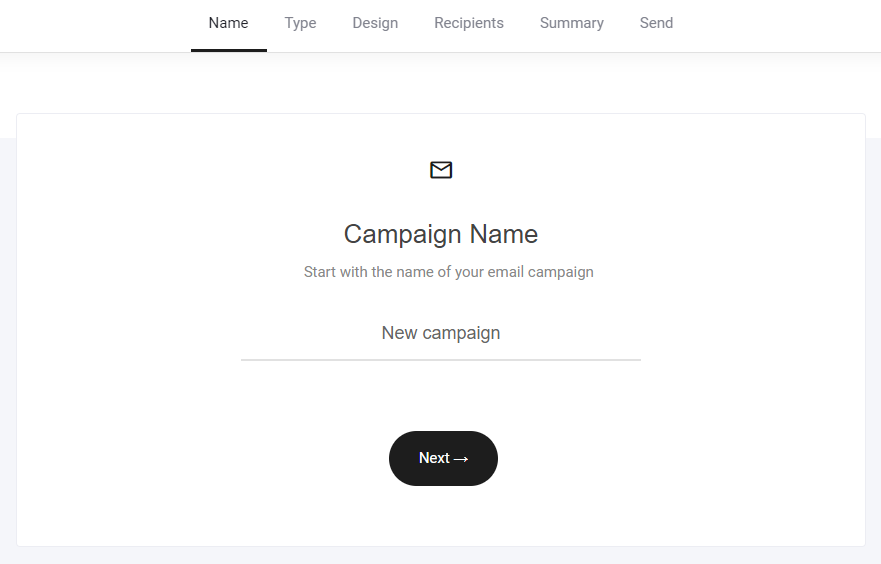
Name campaign

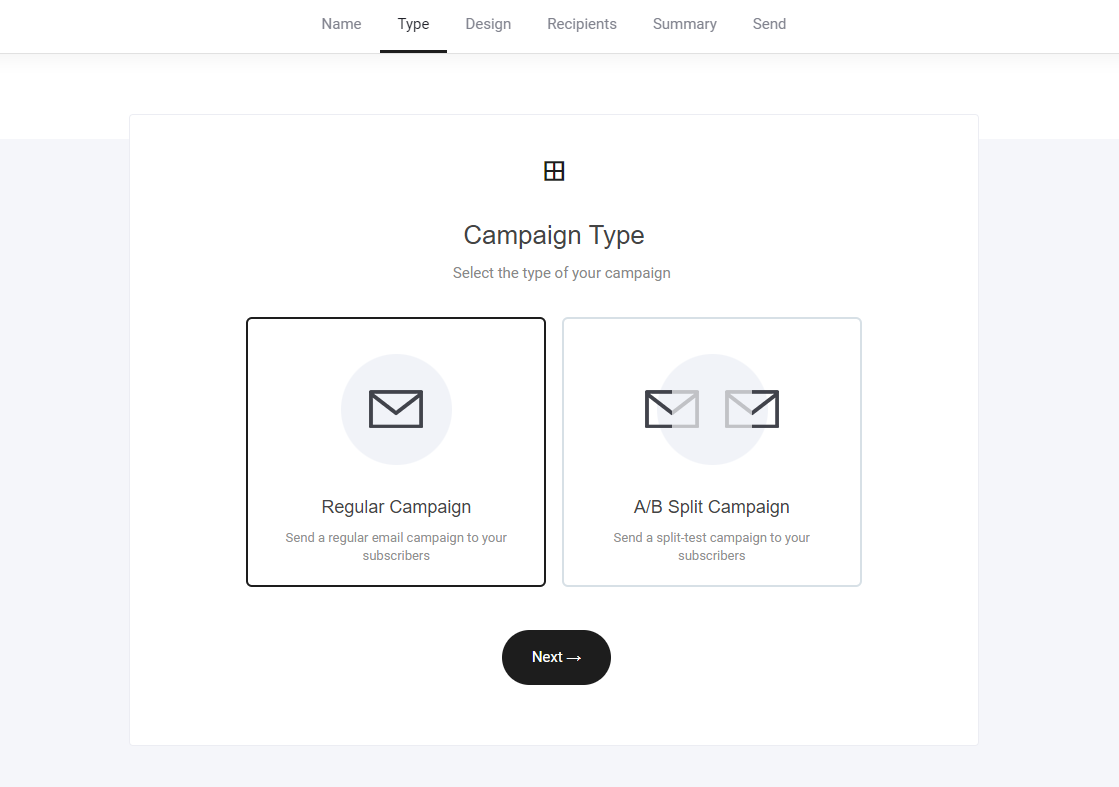
Select your campaign type
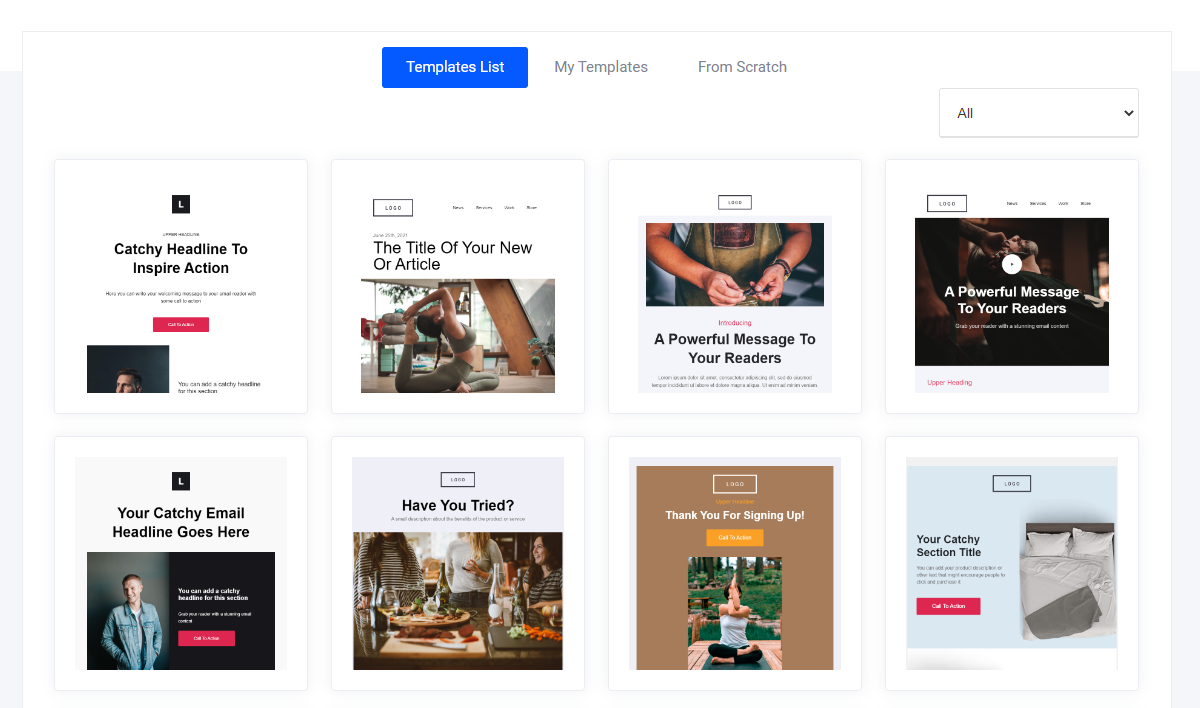
Select your template
Create a template from scratch
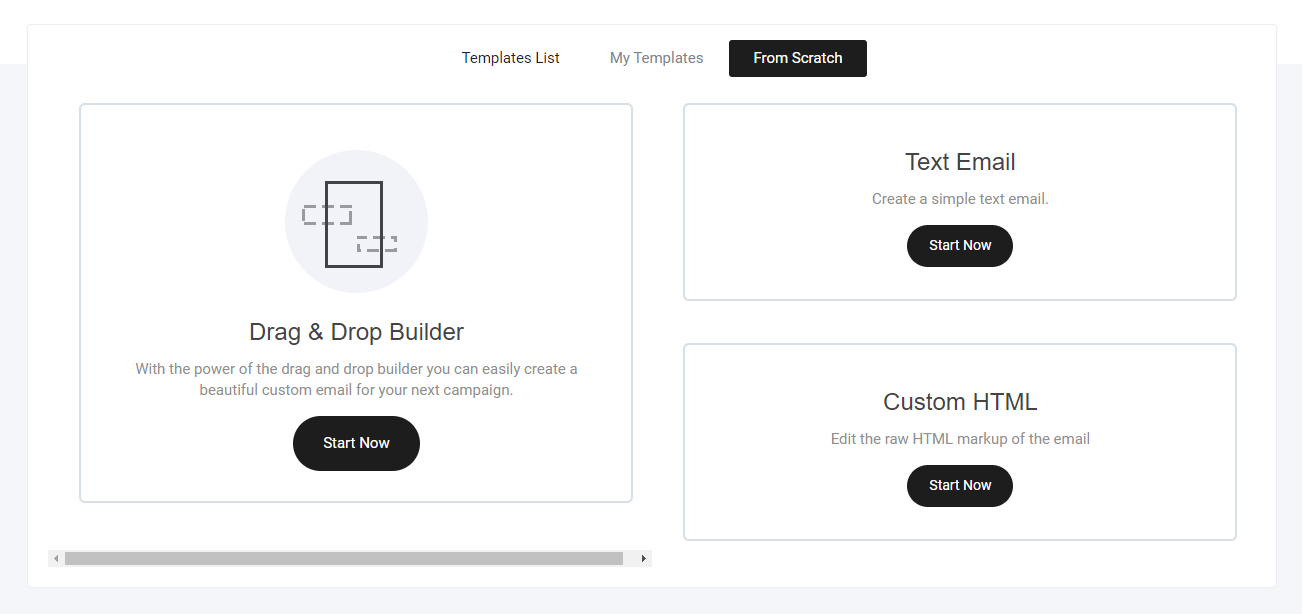
  • Drag and drop builder

  • Text email

  • Custom HTML template

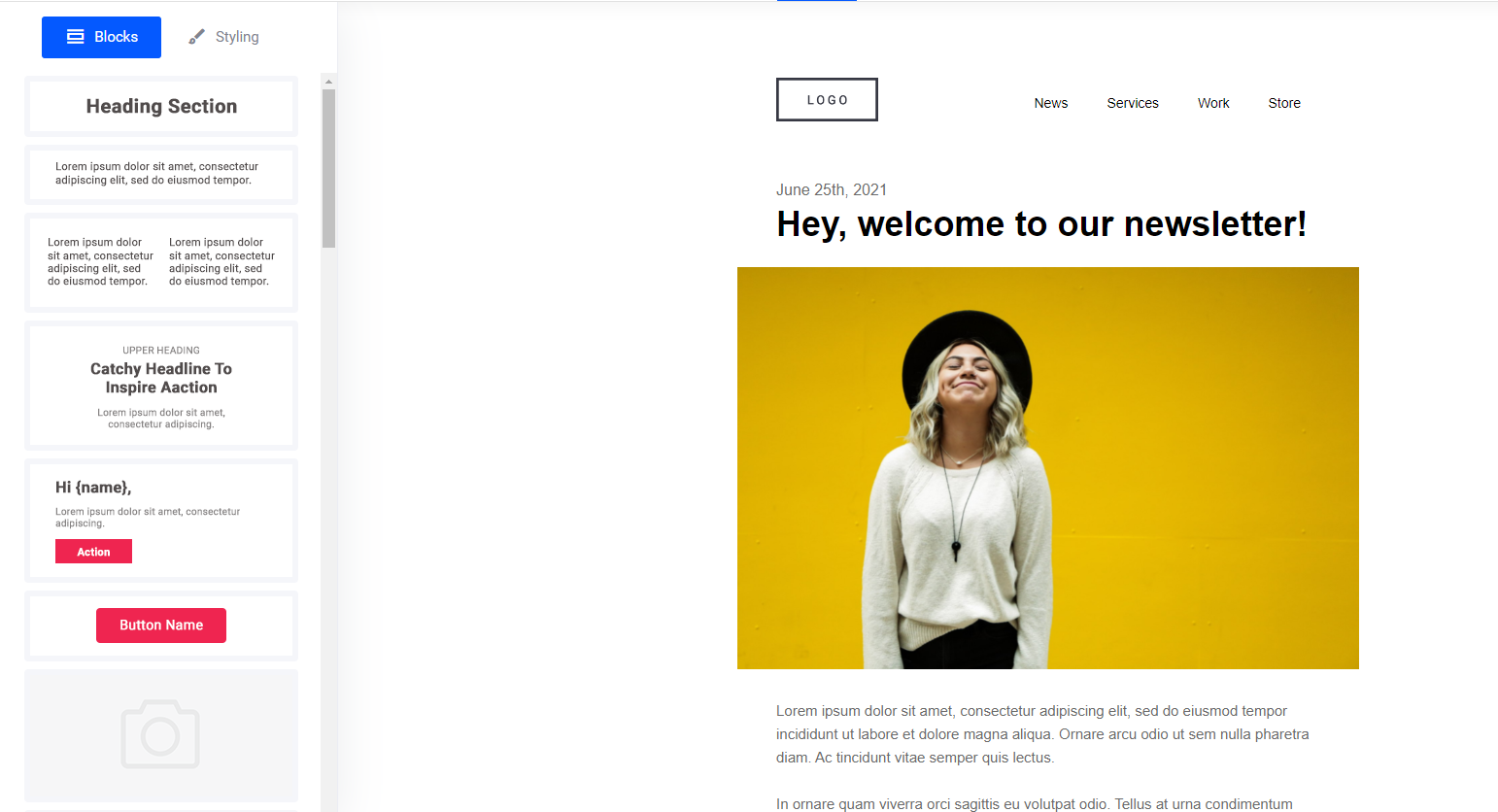
Edit your email template

Select from numerous pre-built block designs and simply drag into position.

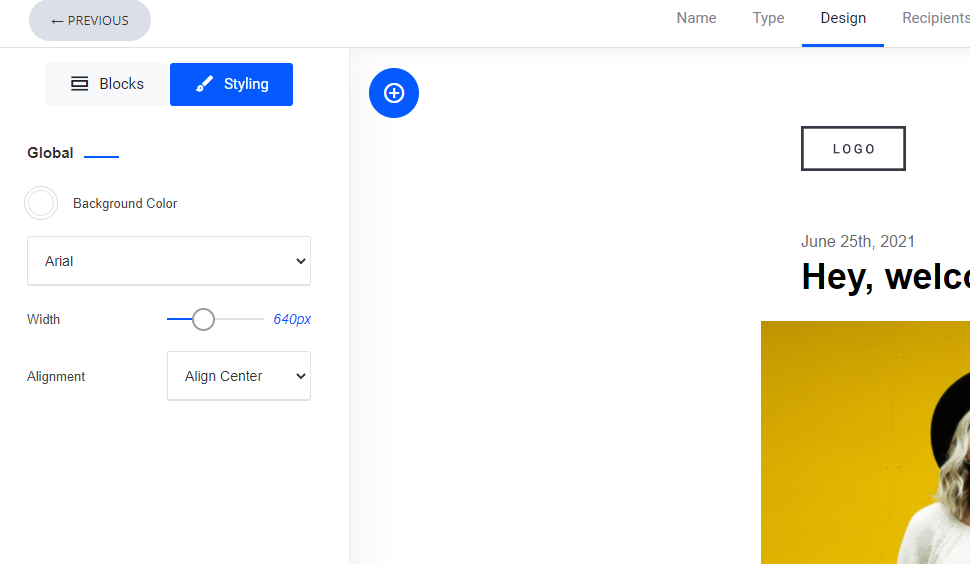
Email styling

Set your email background colour to adjusting the width.

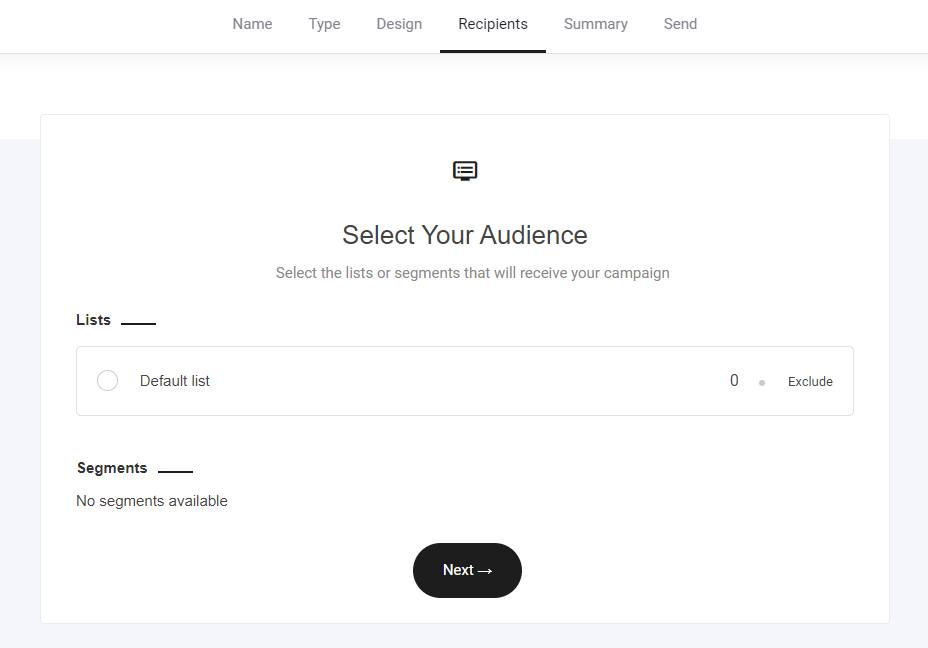
Select your audience

Whether you need to send an email to an entire list of subscribers or a segmented audience, simply select and go next.

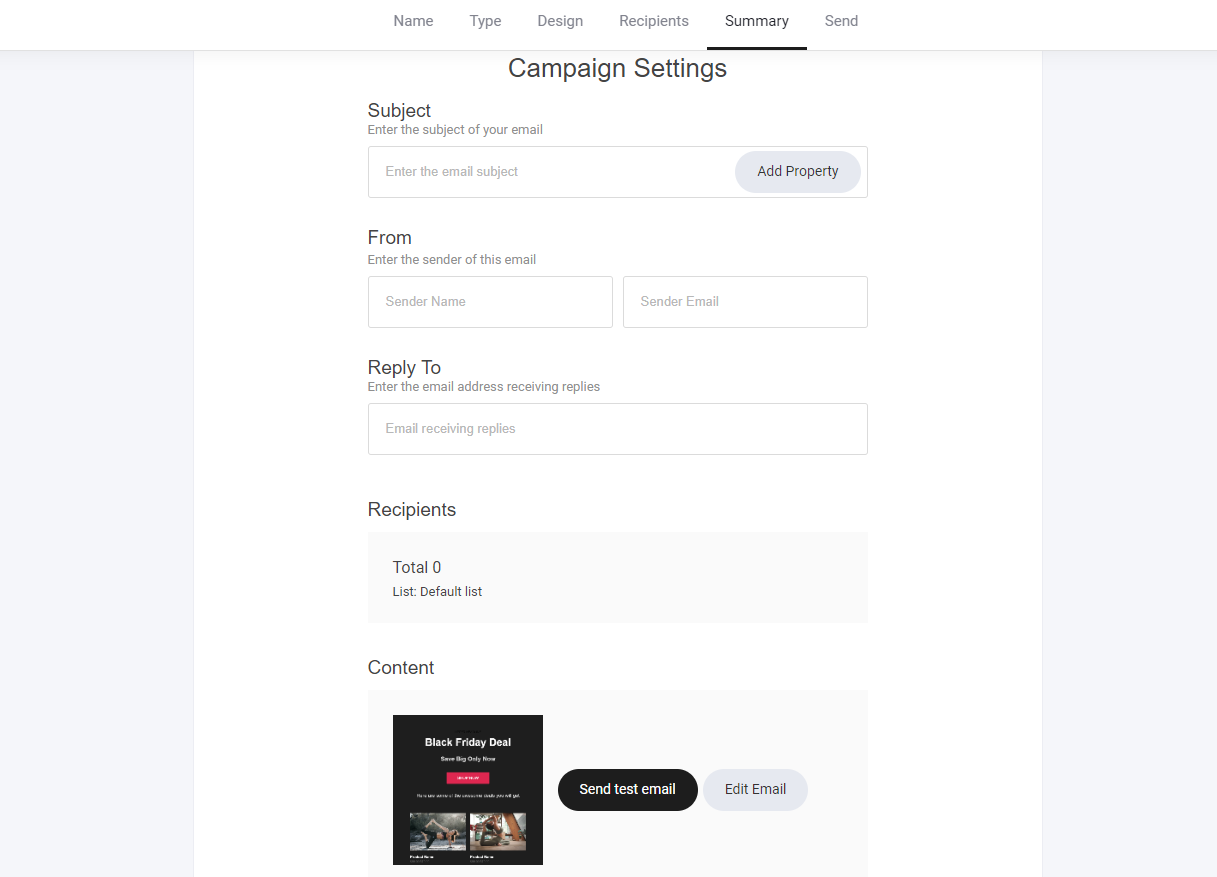
Campaign settings

Craft catchy subject lines to boost open rates and personalize them using CRM properties.

Best Practices:

  • Make It Intriguing – Spark curiosity or urgency (e.g., "Your Exclusive Offer Expires Soon!").

  • Personalize with CRM Data – Use the subscriber’s name or recent activity for relevance.

  • Keep It Short & Clear – Aim for 50 characters or less for better mobile readability.

Test Before Sending:

  • Send a Test Email – Check formatting, links, and design before launching your campaign.

A strategic approach to ensure higher engagement and conversions!

Send it...

Send your campaign right now or schedule it for a later date and time.

Email insights

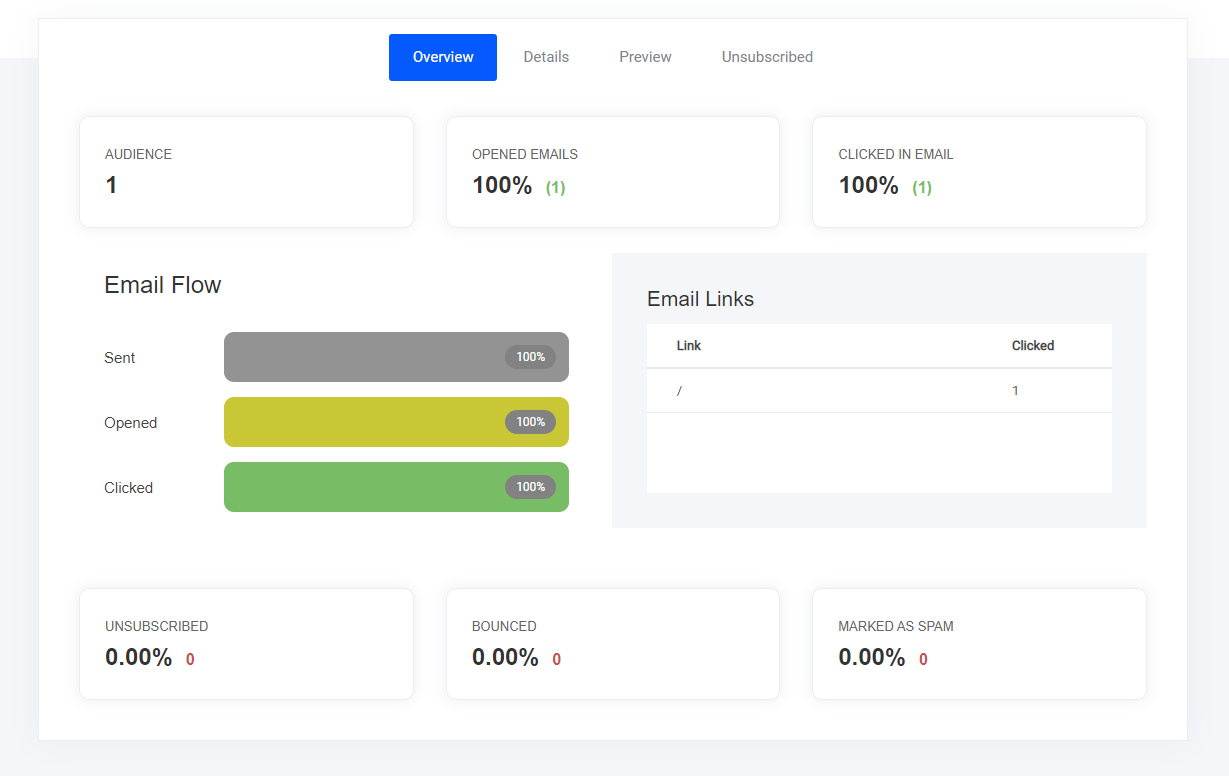
Once your campaign has successfully been sent to your subscribers, you can now view the email performance. Simply click on the campaign you want to view:

To analyse your email campaign performance, this dashboard will help you view:

  • Email opens

  • Link clicks

  • Preview - so you can remember what the email contained

  • Who unsubscribed

  • and more...

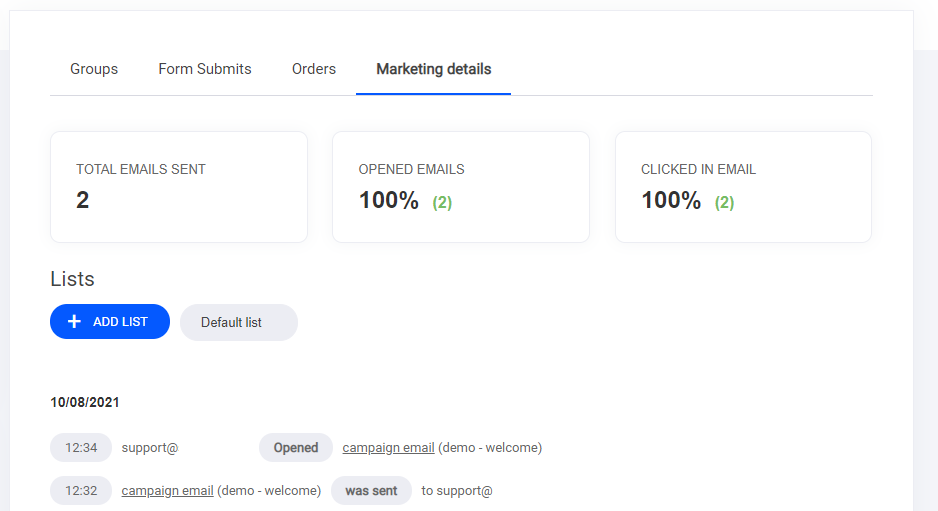
Individual subscriber performance

If you want to view how a specific subscriber is engaging with your email campaigns, you can head to the CRM/Contacts tab > select the subscriber > then select the marketing details tab - as highlighted below.

Last updated

Was this helpful?